
|
Size: 5773
Comment:
|
Size: 10793
Comment:
|
| Deletions are marked like this. | Additions are marked like this. |
| Line 1: | Line 1: |
| ## page was renamed from Unix Tutorial ## page was renamed from UnixTutorialDraft |
|
| Line 5: | Line 7: |
| People with little to no Unix experience, or with some experience but looking for a Unix basics refresher. | People with little to no Unix experience, or with some experience but looking for a refresher. |
| Line 9: | Line 11: |
| To let the student practice the unix skills and concepts needed to enjoy this course. The skills include: * Understanding the unix file system * Understanding how to navigate the unix file system with cd and ls * Understanding that some information can be accessed anywhere via PATH * Understanding how to reorient yourself when lost |
To let the student practice the Unix skills and concepts needed to enjoy this course. The skills include: * Knowing how to navigate around Unix directories * Knowing how to launch programs * Knowing how to quickly peek into the contents of a text document * Knowing how to access variables |
| Line 17: | Line 19: |
| The terminal is a way for you to interact with your computer - just like you interact with your phone through the touch screen or your laptop through the track pad. The terminal lets you interact with your computer through typed in commands. | A terminal is a way for you to interact with your computer - just like you interact with your phone through the touch screen or your laptop through the track pad. The terminal lets you interact with your computer through typed in commands. |
| Line 20: | Line 22: |
| == Why learn Unix? == Throughout this course you will be using the unix terminal to interact with FreeSurfer and FreeView. Writing programs that operate through the terminal lets the programmer focus entirely on making powerful and functional software without spending work hours designing a clickable interface. But stay tuned - more graphical interaction is coming for FreeSurfer in the future! |
== Why learn about Unix terminals? == Throughout this course you will be using the Unix terminal to interact with FreeSurfer and access data. Many computer programs for scientific use are designed to be operated through the terminal. By the end of this tutorial you will have familiarity with finding data and launching programs through the terminal. |
| Line 25: | Line 27: |
| Let's get this tutorial started. | === Getting Started === |
| Line 27: | Line 29: |
| Click the terminal icon on the left side of your screen to launch the terminal. | {{attachment:TerminalIcon.png||align="middle"}} Click the terminal icon on the left side of your screen to launch the terminal. |
| Line 29: | Line 31: |
| Whenever you launch the terminal, you can imagine it as if you are getting in your car. You car has a location, and you drive your car around to move it from location to location to get around the world. The terminal has a location, and “drive” it by typing in commands. | A window will pop open on the screen, before we start typing into it it would be good to adjust the window to be easier to work with. Right click on the bar on the top of the window, then select the "Always On Top" option. That will keep the window in view while you navigate this tutorial. You can also move the window by holding left click on that top bar and moving the window, or resize it by holding left click on the corners. |
| Line 31: | Line 33: |
| There are different ways to mark the location of objects in the world. Lattitude, Longitude, addresses, landmarks, etc. Locations in the terminal are marked through directories. | {{attachment:OnTopCropped.png}} (The MacOSX equivalent of the "gnome-screenshot" command is called "screencapture".) |
| Line 33: | Line 36: |
| It will help if you right click the top of the window then choose always on top. | Whenever you launch the terminal, you can imagine it as if you are getting onto a bike. A bike has a location, and can travel to other locations. The terminal also has a location, and you can navigate it to other locations. |
| Line 35: | Line 38: |
| When you open a terminal it usually takes you to your home directory. Type this into the terminal then press enter | To see where you are, type in {{{ pwd }}} and press enter. The terminal will print out where you are, locations in Unix are called "directories". pwd is short for "Print Working Directory", it prints out where you are. This is like asking your GPS "Where am I?". |
| Line 37: | Line 40: |
| Ls | {{attachment:pwd.png}} |
| Line 39: | Line 42: |
| The terminal now lists everything in your home directory. You will see a bunch of folders with different names like “Photos” “Documents”. One of them is “freesurfer” Lets navigate into that folder. Type | === Looking at files === |
| Line 41: | Line 44: |
| Cd freesurfer | To see what data is in this directory, type in {{{ ls }}} and press enter. |
| Line 43: | Line 46: |
| And press enter. | You will see a list of 2 different things: * Directories - these are the items that end with {{{ / }}}. You can think of directories as "places", "locations", or "folders". {{attachment:folders.png}} * Files - anything that doesn't end in a {{{ / }}} these can be documents, pictures, programs, dicoms... any data! {{attachment:files.png}} * Symbolic links - items that end in a {{{ @ }}}, these are shortcuts to directories. Don't worry about them for now - you can just think of them as the same as directories. {{attachment:linkpic.png}} |
| Line 45: | Line 54: |
| Then type ls in again and look at what you see. These are some of the files and folders that make up Freesurfer. There is a lot more to FreeSurfer than just this, inside of those folders ar emore files and folders, and so on and so on. Lets examine the data in one of these files. If you look through the files listed in ls there is one called README, you can peek inside by typing | You will use {{{ ls }}} a lot to take a look at where to go next while navigating the terminal, I probably use {{{ ls }}} 100s of times a day! {{{ ls }}}, as you may guess {{{ ls }}} short for "list". |
| Line 47: | Line 56: |
| less README | You find data in the Unix terminal by looking through directories, all data belongs inside a directory somewhere on the computer. If you use Windows or OSX you might know the term "folder", directories are the same concept. |
| Line 49: | Line 58: |
| Press q to leave | === Navigating through directories === |
| Line 51: | Line 60: |
| Less is a tool in unix that lets you quickly take a peek at files. | One of the directories you can go to now is called "tutorial_data" lets enter that directory and explore what is inside. |
| Line 53: | Line 62: |
| Not lets leave the freesurfer directory, you can exit a directory by typing cd.. Do that now | Type {{{ cd tutorial_data }}} and press enter |
| Line 55: | Line 64: |
| Now lets navigate to the data you will using thorughout the week, type in | Now we are in the tutorial_data directory, try two things to explore: 1. Type in {{{ ls }}} to see what is in this directory 1. Type in pwd to see what our working directory is now |
| Line 57: | Line 68: |
| Cd $TUTORIAL_DATA | Enter the practice_with_data directory with {{{ cd practice_with_data }}} |
| Line 59: | Line 70: |
| Cd lets you change directories, and $TUTORIAL_DATA is a variable we set up earlier which is the directory of all the data you will use in the tutorial. You can take a peek inside what $TUTORIAL_DATA is representing by typing | Enter {{{ ls }}} to see whats inside. There should be a directory inside called "DICOM". Enter the "DICOM" directory now, try to do it on your own, but look below if you need help. |
| Line 61: | Line 72: |
| Echo $TUTORIAL_DATA | Want to know the answer? Click and drag to highlight and reveal the text below. ||<#000000> cd DICOM || |
| Line 63: | Line 75: |
| You will see the address of the tutorial data. Echo doesn’t actually make any changes or move where you are - echo just prints out whatever comes after it. | Once inside DICOM, enter a command to see what data is inside. Try to do it on your own, but look below if you need help. |
| Line 65: | Line 77: |
| Lets look at some data, type in cd practice_with_data | |
| Line 67: | Line 78: |
| Type cd dicoms | Want to know the answer? Click and drag to highlight and reveal the text below. ||<#000000> ls || |
| Line 69: | Line 81: |
| Type ls | |
| Line 71: | Line 82: |
| This is is a list of discoms taken from an mri scan - you will learn more about this data in a future tutorial. | What you see is a list of data taken from a scan session, FreeSurfer takes this data and turns it into a whole lot of useful new data like 3d surfaces of brains. Let's take a look at some of that FreeSurfer data, first, leave the dicoms directory. How do you do that? Type in {{{ cd .. }}} |
| Line 73: | Line 84: |
| Navigate out of that directory, with cd .. | {{{ cd .. }}} will take you out of the directory you are in, and into the directory that directory is in. Let's go two more directories up, so type in {{{ cd .. }}} again, hit enter. Now type in {{{ cd .. }}} one more time and hit enter. |
| Line 75: | Line 86: |
| Then cd into Subj001 | type in {{{ pwd }}} and press enter to see where you are, you should be in the directory we started in when we first opened the terminal. If you are not sure, just type in {{{ cd ~ }}} and hit enter. {{{ cd ~ }}} will always send you to your starting directory. |
| Line 77: | Line 88: |
| Type ls, the list of directories you see is a typical set of directories created by freesurfer after it runs a set of data through its pipeline. | === Getting around quicker === |
| Line 79: | Line 90: |
| We are not going to take a look at some of this data with FreeView! | Now type in only {{{ cd tu }}} and don't press enter. |
| Line 81: | Line 92: |
| Type in | {{attachment:pretab.png}} |
| Line 83: | Line 94: |
| Freeview -v orig.mgz | Press tab and the terminal will fill in what it thinks you will type - kind of like autocomplete on your phone or browser. It should fill it in with {{{ tutorial_data/ }}} , now enter that directory. |
| Line 85: | Line 96: |
| This is an example of an argument. The creators of FreeView haad to decide a way to let the user choose what kind of file they want to open, and which of that file to open. -v means you want to open a volume, and the name of te volume is orig.mgz | {{attachment:posttab.png}} |
| Line 87: | Line 98: |
| Now there are some tricky things here. For example you types in freeview… but there was no Freeview in that directory! So where did it come from? Before you came to class we set up something called a Path, which is a list of directories Unix will search in whenever you launch a command. So, Freeview is in the path, so Freeview was found even though it wasnt in your current directory. NOTE: Allow user to experiment with this. Orig.mgz was in that directory, so it was found. Close Freeview with the x in the upper right hand corner. Now try something. | |
| Line 89: | Line 99: |
| Navigate up one directory by typiong in cd.. | Now for a small challenge: use {{{ ls }}}, {{{ cd }}} and auto-completion to navigate to " /buckner_data/tutorial_subjs/004/mri " |
| Line 91: | Line 101: |
| Type ls to see what is in there | |
| Line 93: | Line 102: |
| Now type Freeview -v orig.mgz just lke before | Take a look at the files inside, these are freesurfer volumes. You will learn more about these later - but for now lets examine one. |
| Line 95: | Line 104: |
| You will get an error that the file was not found! That is because orig.mgz was not in the directory you are in. Here is what would have worked, feel free to try. | === Launching programs === |
| Line 97: | Line 106: |
| Freeview -v mri/orig.mgz | Usually you can only access files and programs inside the directory the terminal is in - but we set up your computer so that you can launch !FreeView (a tool to look at FreeSurfer data) anywhere. Enter this command to launch !FreeView and examine some data ( you will want to make sure you are in the directory you were asked to go to last challenge, if you are not you can use this command to get there {{{ cd $HOME/tutorial_data/buckner_data/tutorial_subjs/004/mri }}} ) |
| Line 99: | Line 108: |
| A volume is one type of data you use in freesurfer, a surface is anohter. Lets open a surface. | {{{ freeview -v orig.mgz }}} |
| Line 101: | Line 110: |
| Enter the tutorial_data folder again, either by doing the cd.. Comand a couple of types or typing in cd $TUTORIAL_DATA | |
| Line 103: | Line 111: |
| Cd bucker_data | {{attachment:fvpreview.png||width=600}} |
| Line 105: | Line 113: |
| Cd tutorial_subjs | Usually, after you type in a program name, you add something called arguments at the end like {{{ -v orig.mgz }}}. In this case the argument told !FreeView to open the orig.mgz volume. |
| Line 107: | Line 115: |
| Cd good_output | Spend some time exploring !FreeView if you'd like. |
| Line 109: | Line 117: |
| Cd surf | Close your !FreeView window (press on the word {{{ file }}} in the top left, then {{{ exit }}} ). ##, go back to your terminal, and open the rawavg.mgz volume with !FreeView. Look at the command you tried before to see how. ##When you have done that close FreeView. |
| Line 111: | Line 120: |
| You also could have accessed that by typiong cd $TUTORIAL_DATA/buckner_data/tutorial_subjs/good_output/surf but I prefer to go dir by dir. | Now, an experiment for you to try. Leave the directory you are in by typing {{{ cd .. }}} . Now, try to open the first volume we opened by typing in {{{ freeview -v orig.mgz }}} again. You will get an error! That is expected. |
| Line 113: | Line 123: |
| Type ls and look at allk that data! | |
| Line 115: | Line 124: |
| Lets open one | {{attachment:failed.png}} |
| Line 117: | Line 126: |
| Freeview -f lh.pial rh.pial -viewport 3d | The error is because there is no file called "orig.mgz" in the terminal's present working directory, the "orig.mgz" you opened earlier is in a different directory. The file "orig.mgz" is actually in the "mri" directory inside your terminal's present working directory. |
| Line 119: | Line 128: |
| -f lets us open surfaces, and -viewport lets us choose what kind of view we want to take. You will get more familiar with these commands as the course goes on. | Close !FreeView again. Now, see if you can figure out how to open up the orig.mgz volume again with !FreeView. Were you successful? There are a couple of different ways to have done it. Highlight below to see. Method 1: ||<#000000> {{{ cd mri }}} || ||<#000000> {{{ freeview -v orig.mgz }}} || Method 2: ||<#000000> {{{ freeview -v mri/orig.mgz }}} || There are often many ways to accomplish anything with the Unix Terminal, so if you ever see something done in a way you don't understand that is okay! The terminal is something you never stop learning about. === Accessing Variables === Moving in and out of directories can be exhausting! What if there was a way to tell your terminal to remember certain directories - like bookmarks in your web browser? There is. You can store directories in variables. Let's use a variable we already set up for you. type in {{{ cd $TUTORIAL_DATA }}} (hint, you can use the tab auto-complete here!) You are back in your tutorial data directory! You can use this if you ever get lost in all of your directories. If you ever just want to take a peek to see what is inside a variable you can use {{{ echo }}} type in {{{ echo $TUTORIAL_DATA }}} to see that the variable is holding the path to your tutorial data directory. And if you type in {{{ pwd }}} you will see that they match, because you are in the tutorial data now. Whenever you open your terminal, we have it set up so a bunch of variables are set up for you. You can close your terminal now and re-open it to see, or just look at the screenshot below: {{attachment:vars.png}} At the start of most tutorials you will be asked to set the SUBJECTS_DIR variable. FreeSurfer checks the SUBJECTS_DIR to find data, so we change that variable to point to whatever directory has the subject data we want FreeSurfer to process. Don't worry about knowing how to do that, each tutorial has instructions to set up the variables. === Copy paste and reading text files === Copying and pasting text into a terminal is a little different than you might be used to. First, highlight and copy the following line: {{{ cd $TUTORIAL_DATA/buckner_data/tutorial_subjs/good_output/stats/ }}} Now, go to your terminal and press your middle mouse button down to paste the text. Then press enter to run the command. Enter {{{ ls }}} and see the files inside. These are text files generated by FreeSurfer containing data about a subject. You can use the {{{ less }}} command to quickly view the contents of a text file. For example, try typing in {{{ less aseg.stats }}} . You may want to make the terminal larger to better view the contents. Use the up and down arrows on your keyboard to navigate the text, and press "q" to quit the less program. {{attachment:lessaseg.png||width=600}} === Congrats! === You now have practiced the basic terminal skills needed to enjoy this course. Have extra time? Play some Terminus! It's a game that will help you get very comfortable with the {{{ cd }}} and {{{ ls }}} commands, along with how paths work. http://web.mit.edu/mprat/Public/web/Terminus/Web/main.html |
Unix Tutorial
Who this tutorial is for:
People with little to no Unix experience, or with some experience but looking for a refresher.
What are the goals of this tutorial:
To let the student practice the Unix skills and concepts needed to enjoy this course. The skills include:
- Knowing how to navigate around Unix directories
- Knowing how to launch programs
- Knowing how to quickly peek into the contents of a text document
- Knowing how to access variables
What is a Unix terminal?
A terminal is a way for you to interact with your computer - just like you interact with your phone through the touch screen or your laptop through the track pad. The terminal lets you interact with your computer through typed in commands.
Why learn about Unix terminals?
Throughout this course you will be using the Unix terminal to interact with FreeSurfer and access data. Many computer programs for scientific use are designed to be operated through the terminal. By the end of this tutorial you will have familiarity with finding data and launching programs through the terminal.
How do I use the terminal?
Getting Started
 Click the terminal icon on the left side of your screen to launch the terminal.
A window will pop open on the screen, before we start typing into it it would be good to adjust the window to be easier to work with. Right click on the bar on the top of the window, then select the "Always On Top" option. That will keep the window in view while you navigate this tutorial. You can also move the window by holding left click on that top bar and moving the window, or resize it by holding left click on the corners.
 (The MacOSX equivalent of the "gnome-screenshot" command is called "screencapture".)
Whenever you launch the terminal, you can imagine it as if you are getting onto a bike. A bike has a location, and can travel to other locations. The terminal also has a location, and you can navigate it to other locations.
To see where you are, type in pwd and press enter. The terminal will print out where you are, locations in Unix are called "directories". pwd is short for "Print Working Directory", it prints out where you are. This is like asking your GPS "Where am I?".

Looking at files
To see what data is in this directory, type in ls and press enter.
You will see a list of 2 different things:
Directories - these are the items that end with / . You can think of directories as "places", "locations", or "folders".
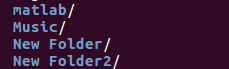
Files - anything that doesn't end in a / these can be documents, pictures, programs, dicoms... any data!
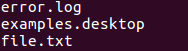
Symbolic links - items that end in a @ , these are shortcuts to directories. Don't worry about them for now - you can just think of them as the same as directories.

You will use ls a lot to take a look at where to go next while navigating the terminal, I probably use ls 100s of times a day! ls , as you may guess ls short for "list".
You find data in the Unix terminal by looking through directories, all data belongs inside a directory somewhere on the computer. If you use Windows or OSX you might know the term "folder", directories are the same concept.
Navigating through directories
One of the directories you can go to now is called "tutorial_data" lets enter that directory and explore what is inside.
Type cd tutorial_data and press enter
Now we are in the tutorial_data directory, try two things to explore:
Type in ls to see what is in this directory
- Type in pwd to see what our working directory is now
Enter the practice_with_data directory with cd practice_with_data
Enter ls to see whats inside. There should be a directory inside called "DICOM". Enter the "DICOM" directory now, try to do it on your own, but look below if you need help.
Want to know the answer? Click and drag to highlight and reveal the text below.
cd DICOM |
Once inside DICOM, enter a command to see what data is inside. Try to do it on your own, but look below if you need help.
Want to know the answer? Click and drag to highlight and reveal the text below.
ls |
What you see is a list of data taken from a scan session, FreeSurfer takes this data and turns it into a whole lot of useful new data like 3d surfaces of brains. Let's take a look at some of that FreeSurfer data, first, leave the dicoms directory. How do you do that? Type in cd ..
cd .. will take you out of the directory you are in, and into the directory that directory is in. Let's go two more directories up, so type in cd .. again, hit enter. Now type in cd .. one more time and hit enter.
type in pwd and press enter to see where you are, you should be in the directory we started in when we first opened the terminal. If you are not sure, just type in cd ~ and hit enter. cd ~ will always send you to your starting directory.
Getting around quicker
Now type in only cd tu and don't press enter.
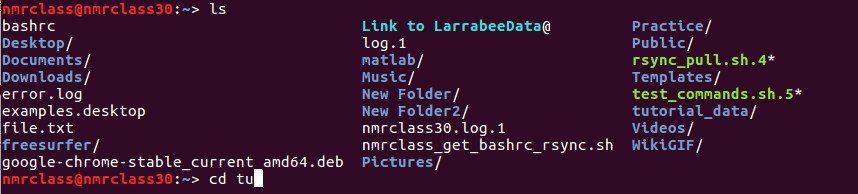
Press tab and the terminal will fill in what it thinks you will type - kind of like autocomplete on your phone or browser. It should fill it in with tutorial_data/ , now enter that directory.
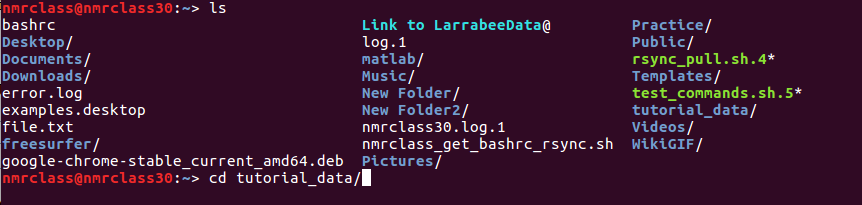
Now for a small challenge: use ls , cd and auto-completion to navigate to " /buckner_data/tutorial_subjs/004/mri "
Take a look at the files inside, these are freesurfer volumes. You will learn more about these later - but for now lets examine one.
Launching programs
Usually you can only access files and programs inside the directory the terminal is in - but we set up your computer so that you can launch FreeView (a tool to look at FreeSurfer data) anywhere. Enter this command to launch FreeView and examine some data ( you will want to make sure you are in the directory you were asked to go to last challenge, if you are not you can use this command to get there cd $HOME/tutorial_data/buckner_data/tutorial_subjs/004/mri )
freeview -v orig.mgz
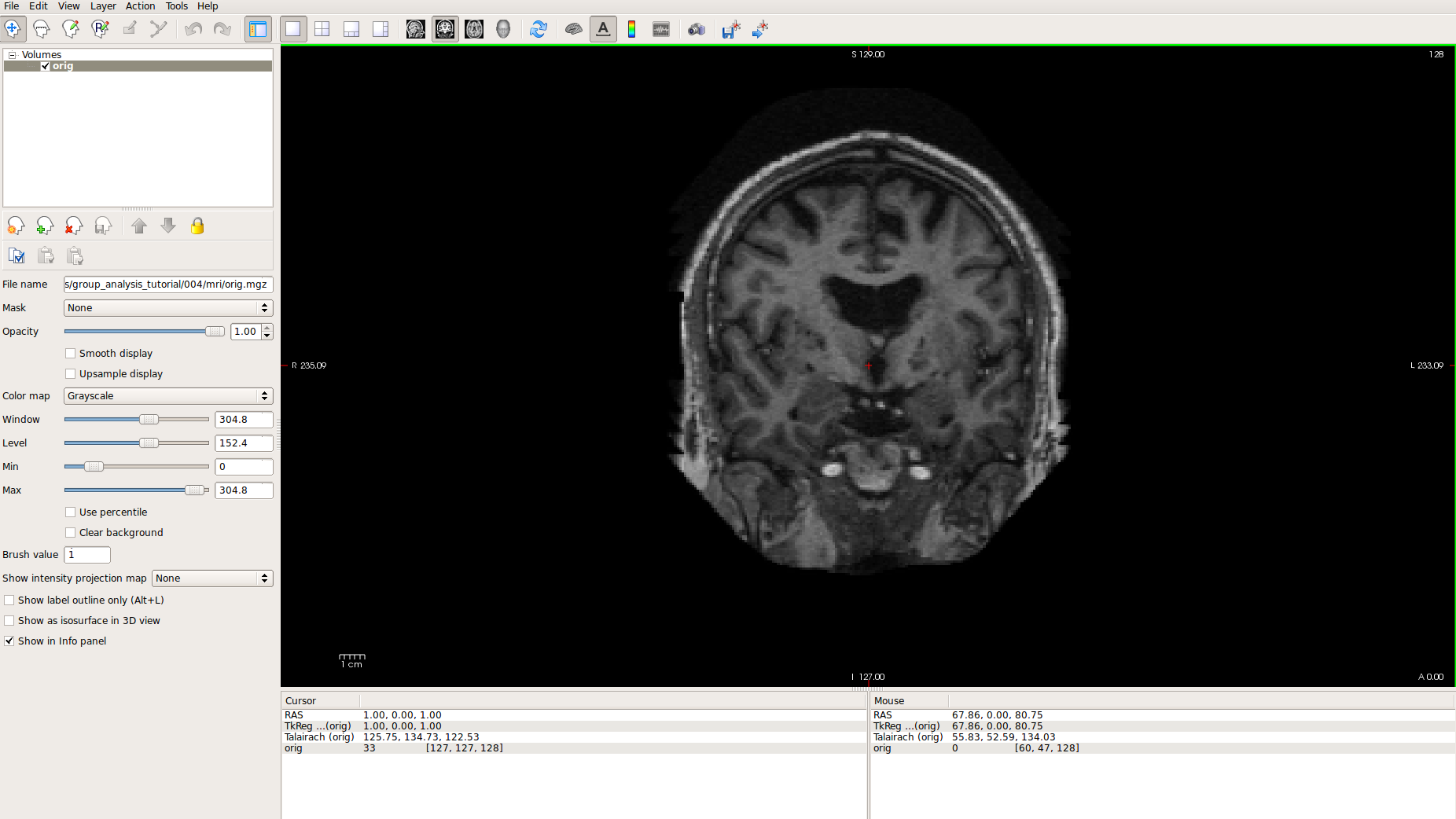
Usually, after you type in a program name, you add something called arguments at the end like -v orig.mgz . In this case the argument told FreeView to open the orig.mgz volume.
Spend some time exploring FreeView if you'd like.
Close your FreeView window (press on the word file in the top left, then exit ).
Now, an experiment for you to try. Leave the directory you are in by typing cd .. . Now, try to open the first volume we opened by typing in freeview -v orig.mgz again. You will get an error! That is expected.

The error is because there is no file called "orig.mgz" in the terminal's present working directory, the "orig.mgz" you opened earlier is in a different directory. The file "orig.mgz" is actually in the "mri" directory inside your terminal's present working directory.
Close FreeView again. Now, see if you can figure out how to open up the orig.mgz volume again with FreeView.
Were you successful? There are a couple of different ways to have done it. Highlight below to see.
Method 1:
cd mri |
freeview -v orig.mgz |
Method 2:
freeview -v mri/orig.mgz |
There are often many ways to accomplish anything with the Unix Terminal, so if you ever see something done in a way you don't understand that is okay! The terminal is something you never stop learning about.
Accessing Variables
Moving in and out of directories can be exhausting! What if there was a way to tell your terminal to remember certain directories - like bookmarks in your web browser? There is. You can store directories in variables. Let's use a variable we already set up for you.
type in cd $TUTORIAL_DATA (hint, you can use the tab auto-complete here!)
You are back in your tutorial data directory! You can use this if you ever get lost in all of your directories. If you ever just want to take a peek to see what is inside a variable you can use echo type in echo $TUTORIAL_DATA to see that the variable is holding the path to your tutorial data directory. And if you type in pwd you will see that they match, because you are in the tutorial data now.
Whenever you open your terminal, we have it set up so a bunch of variables are set up for you. You can close your terminal now and re-open it to see, or just look at the screenshot below:

At the start of most tutorials you will be asked to set the SUBJECTS_DIR variable. FreeSurfer checks the SUBJECTS_DIR to find data, so we change that variable to point to whatever directory has the subject data we want FreeSurfer to process. Don't worry about knowing how to do that, each tutorial has instructions to set up the variables.
Copy paste and reading text files
Copying and pasting text into a terminal is a little different than you might be used to. First, highlight and copy the following line: cd $TUTORIAL_DATA/buckner_data/tutorial_subjs/good_output/stats/
Now, go to your terminal and press your middle mouse button down to paste the text. Then press enter to run the command.
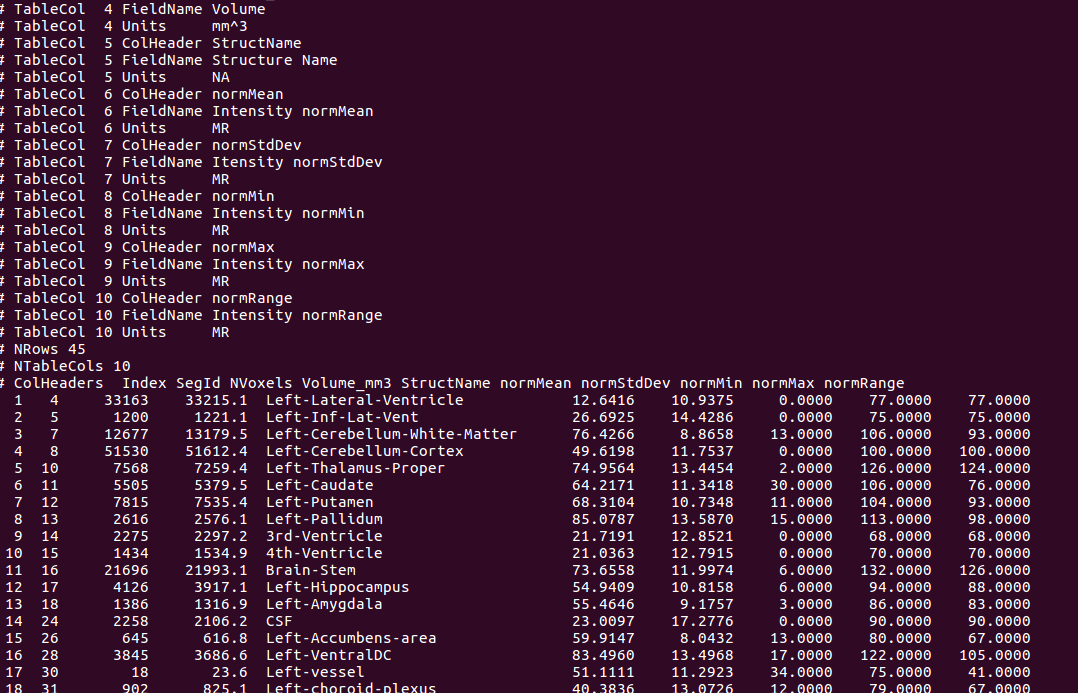
Enter ls and see the files inside. These are text files generated by FreeSurfer containing data about a subject. You can use the less command to quickly view the contents of a text file. For example, try typing in less aseg.stats . You may want to make the terminal larger to better view the contents. Use the up and down arrows on your keyboard to navigate the text, and press "q" to quit the less program.
Congrats!
You now have practiced the basic terminal skills needed to enjoy this course.
Have extra time? Play some Terminus! It's a game that will help you get very comfortable with the cd and ls commands, along with how paths work.