
|
Size: 3429
Comment:
|
Size: 4352
Comment: added a setenv line for convenience
|
| Deletions are marked like this. | Additions are marked like this. |
| Line 1: | Line 1: |
| [[FsTutorial/MultiModal|Back to Tutorial Top]]<<BR>> | |
| Line 2: | Line 3: |
Other Multimodal Tutorials: [[FsTutorial/MultiModalFmriIndividual|B. Individual fMRI Integration]], [[FsTutorial/MultiModalFmriGroup|C. Surface-based Group fMRI Analysis]], [[FsTutorial/MultiModalDtiIndividual|D. Individual DTI Integration]] <<BR>> |
|
| Line 11: | Line 17: |
| ---- | |
| Line 12: | Line 19: |
| cd $TUTORIAL/mmtutorial/fmri/fbirn-101 | setenv TUTORIAL_DATA $FREESURFER_HOME/subjects/buckner_data/tutorial_subjs setenv SUBJECTS_DIR $TUTORIAL_DATA cd $TUTORIAL_DATA/multimodal/fmri/fbirn-101 |
| Line 14: | Line 23: |
| ---- | |
| Line 24: | Line 34: |
| ---- | |
| Line 28: | Line 39: |
| ---- | |
| Line 29: | Line 41: |
| The FreeSurfer subject name is "fbirn-anat-101.v4". -\-regheader | The FreeSurfer subject name is "fbirn-anat-101.v4". --regheader |
| Line 36: | Line 48: |
| PIC | {{attachment:Registration.jpg}} |
| Line 57: | Line 69: |
| ---- | |
| Line 62: | Line 75: |
| ---- | |
| Line 65: | Line 79: |
| 1. --init-fsl indicates that the program should use [http://www.fmrib.ox.ac.uk/fsl|FSL FLIRT]. You must have FSL installed. | 1. --init-fsl indicates that the program should use [[http://www.fmrib.ox.ac.uk/fsl|FSL FLIRT]]. You must have FSL installed. |
| Line 67: | Line 81: |
| 1. This will take about 5 min. | 1. This will take about 5 min (the same amount of time you spent manually, right?) |
| Line 72: | Line 86: |
| ---- | |
| Line 75: | Line 90: |
| Click here to see example. | ---- Click [[FsTutorial/MultiModalRegistration/RegisterFile|here]] to see an example. |
| Line 80: | Line 96: |
| ---- | |
| Line 83: | Line 100: |
| ---- {{attachment:registerafter.jpg}} |
|
| Line 88: | Line 108: |
| Things to do: | Things to do or try: |
| Line 90: | Line 110: |
Other Multimodal Tutorials: [[FsTutorial/MultiModalFmriIndividual|B. Individual fMRI Integration]], [[FsTutorial/MultiModalFmriGroup|C. Surface-based Group fMRI Analysis]], [[FsTutorial/MultiModalDtiIndividual|D. Individual DTI Integration]] <<BR>> |
Back to Tutorial Top
Back to Multimodal Top
Other Multimodal Tutorials: B. Individual fMRI Integration, C. Surface-based Group fMRI Analysis, D. Individual DTI Integration
The purpose of this tutorial is to get you acquainted with the concepts need to perform multi-modal integration in FreeSurfer using fMRI and DTI analysis. You will not learn how to perform fMRI or DTI analysis here; that knowledge is already assumed. The fMRI makes use of data from the Functional Biomedical Informatics Research Network (fBIRN, www.nbirn.net).
Registration
All the commands in this section should be run from this directory
setenv TUTORIAL_DATA $FREESURFER_HOME/subjects/buckner_data/tutorial_subjs
setenv SUBJECTS_DIR $TUTORIAL_DATA
cd $TUTORIAL_DATA/multimodal/fmri/fbirn-101
Basic Manual Registration
The purpose of this exercise is to:
- Familiarize you with the tkregister2 command interface.
- Show you how to make manual adjustments to the registration.
- Show you what a bad registration is and how hard it is to fix manually.
First, load a functional volume with the anatomical volume using tkregister2:
tkregister2 --mov template.nii --s fbirn-anat-101.v4 \
 --regheader --reg myregister.dat --surf
The FreeSurfer subject name is "fbirn-anat-101.v4". --regheader indicates that tkregister2 should assume that the volumes are already in registration. myregister.dat is the output registration (does not exist yet).
This should bring up an interface that looks like this:
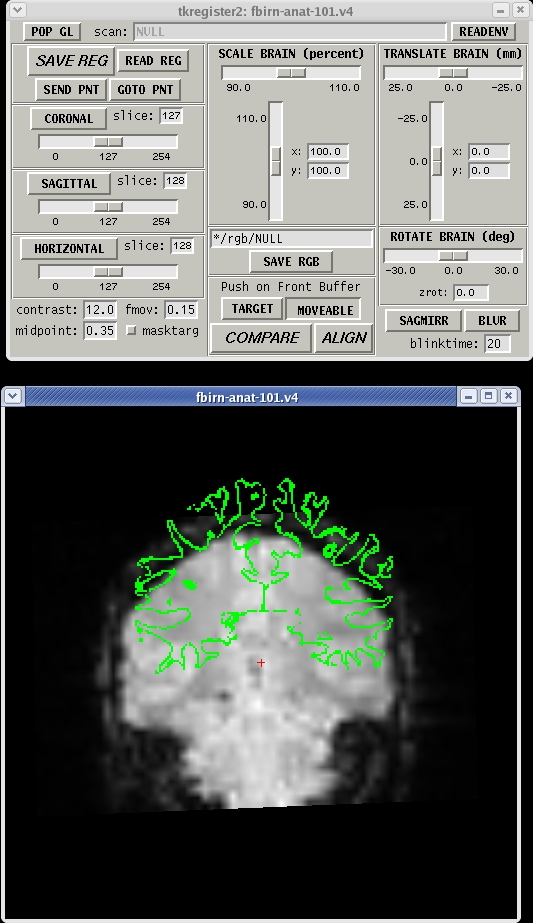
- The gray scale image is the functional.
- The green line is the white surface.
- Note that they are not at all in alignment.
- Gray matter and CSF are bright while white matter is dark.
Things to do:
- Click in the image window and hit the 's' key to toggle the surface on and off.
- Click on the "COMPARE" button to toggle between the functional and the anatomical. Note that the green surface is aligned with the anatomical.
- Change orientation by clicking on the "CORONAL", "SAGITTAL", and "HORIZONTAL" buttons.
- NOTE: DO NOT SPEND MORE THAN 5min DOING THIS STEP! Attempt to register the functional manually by adjusting the "TRANSLATE BRAIN" and "ROTATE BRAIN" sliders. Do NOT use "SCALE BRAIN".
- You can hit the "SAVE REG" button at any time to save a registration. If you hit it again, it will ask you if it is ok to overwrite it (it is).
Automatic Registration
The purpose of this exercise is to show you how to use the automatic registration program (bbregister). To run, cut and paste this command into your shell:
  bbregister --mov template.nii --bold \
    --s fbirn-anat-101.v4 \
    --init-fsl --reg register.dat
Notes:
- --bold indicates that the template has bold/T2 contrast (meaning that gray matter is brighter than white matter).
--init-fsl indicates that the program should use FSL FLIRT. You must have FSL installed.
- register.dat is the output file
- This will take about 5 min (the same amount of time you spent manually, right?)
View Automatic Registration
Look at the register.dat text file created:
cat register.dat
Click here to see an example.
Load a functional volume with the anatomical volume specifying the recently created automatic registration:
tkregister2 --mov template.nii --reg register.dat --surf
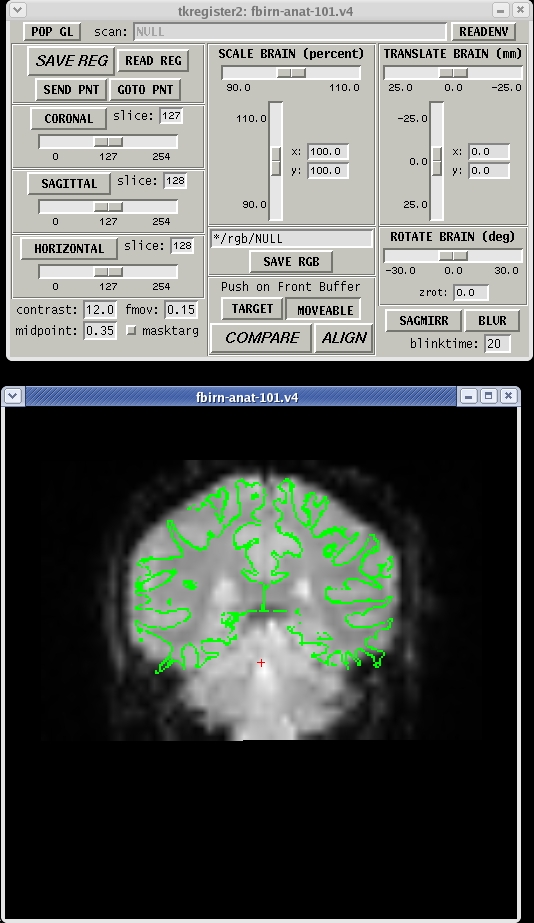
Command-line Notes:
- The subject is not specified since it is in the register.dat
- --regheader is not used
Things to do or try:
- How does it look compared to your manual registration above? Can you make it any better?
Other Multimodal Tutorials: B. Individual fMRI Integration, C. Surface-based Group fMRI Analysis, D. Individual DTI Integration