
|
Size: 19499
Comment:
|
← Revision 132 as of 2014-01-28 16:08:46 ⇥
Size: 15704
Comment:
|
| Deletions are marked like this. | Additions are marked like this. |
| Line 1: | Line 1: |
| [wiki:Self:FsTutorial top] | [wiki:Self:FsTutorial/MorphAndRecon previous] | [wiki:Self:FsTutorial/Visualization next] *To follow this exercise exactly be sure you've downloaded the tutorial data set before you begin. If you choose not to download the data set you can follow these instructions on your own data, but you will have to substitute your own specific paths and subject names. = FreeSurfer Tutorial: Group Analysis = In this tutorial, you will learn how to perform statistical analysis of group surface-based data, including:[[BR]] *Making an average subject from your set of subjects *Constructing a FreeSurfer Group Descriptor File (FSGD)[[BR]] *Preprocessing the group data[[BR]] *Constructing the design matrix[[BR]] *Constructing contrast matrices to test hypotheses[[BR]] *Correcting for multiple comparisons[[BR]] Assuming that all surface reconstruction has been completed for all subjects in the study, FreeSurfer's mri_glmfit command can be used to perform inter-subject/group averaging and inference on the cortical surface. Mri_glmfit models the data as a linear combination of effects related to variables of interest, confounds and errors, and permits statistical inferences to be made about effects of interest in relation to error variance. It also allows for certain permutation testing and other means for correcting for mutliple comparisons. For group analysis, this technique fits a general linear model (GLM) at each surface vertex to explain the data from all subjects in the study. In this section, a brief overview of linear modeling is presented and mri_glmfit is described for estimating a linear model and testing hypotheses. The modeling overview can be skipped if this material is already familiar. Other software packages have similar types of programs (e.g., FSL's GFEAT). == 1.0 Preparing for Group Analysis == For group analysis, you can create an average subject from all the participants in the study. This average will be used as the target subject upon which the results of your group analysis can be output and viewed. To create this average, use ''make_average_subject''. One has already been created for the later exercise, so there is no need to execute this sample command: {{{ make_average_subject --subjects <subj1> <subj2> ... }}} The default behavior of this script is to create a subject in the $SUBJECTS_DIR named 'average' using each subjects talairach.xfm transform. This behavior can be modified on the command line. You can specify --out your_named_average to change the name of the average subject and --xform talairach.lta (or talairach.m3z) to specify the use of one of the other transforms. The average subject is created using the processed volumes and surfaces from the set of subjects you specify following the --subjects flag. The make_average_subject command executes both the make_average_volume and make_average_surface subscripts for you. The distributed example of an average subject can be found in {{{$FREESURFER_HOME/subjects/buckner_data/tutorial_subjs/group_analysis_tutorial}}} called {{{fsaverage}}} This average subject was created using the required volumes and surfaces of subjects in: $FREESURFER_HOME/subjects/buckner_data/group_study == 2.0 Linear Modeling overview == Linear modeling describes the observed data as a linear combination of explanatory factors plus noise, and determines how well that description explains the data being analyzed.In order to understand how to perform group analysis in FreeSurfer, you need to understand the general linear model (GLM) and how to construct a GLM in matrix notation. You can click [wiki:Self:FsTutorial/GlmReview here] for a review of this material. The notation we use here is:'''y=X*beta''', where '''y''' is the vector observed data (eg, thicknesses for each subject at a vertex), '''X''' is the known design matrix (eg, gender, age), and '''beta''' is the vector of unknown parameter estimates (PEs). The interpretation of the PEs will depend upon how '''X''' is constructed. For example, they could be interpeted as a slope indicating the change of thickness with age. The analysis/estimation is then the process of computing '''beta''' given the data '''y''' and the design matrix '''X'''. A Null Hypothesis (H0) is constructed with a contract matrix '''C'''. Inferences are drawn by testing whether the value '''gamma=Cb''' is zero. == 3.0 Using mri_glmfit for estimating the linear model and hypothesis testing == As stated earlier, mri_glmfit performs inter-subject/group averaging and inference on the surface by fitting a linear model at each vertex. The model consists of subject parameters ('''e.g.''', age, gender, etc). The model is the same across all vertices, though the fit will probably be different at each vertex. To specify the model, a design matrix that represents the GLM must be created. === Create an FSGD file === The FreeSurfer Group Descriptor File (FSGDF) provides a way to describe a group of subjects and their accompanying data. This can include class membership and other continuous variables, for example gender or age. When it exists, the FSGDF is used by mri_glmfit, tksurfer and tkmedit. The FSGDF is more than just a way to specify the design matrix. It also keeps track of group membership and covariate definitions. This information is then used to help visualize the results. This is not possible when only a design matrix is used. The following study variables correspond to all the subjects found in {{{$FREESURFER_HOME/subjects/buckner_data/tutorial_subjs/group_analysis_tutorial/}}} and are presented in a spreadsheet. You'll need to compose an FSGD file with the appropriate variables in order to specify a design matrix that can be used to examine the relationship between a subject's age and cortical thickness. You can read more about the rules for creating an FSGD file [wiki:Self:FsTutorial/CreateFsgdFile here]. To get started, open the text editor of your choice and add individual tags by following the general example and rules described [wiki:Self:FsTutorial/CreateFsgdFile here]. In general, it's a good idea to name the file something intuitive, such as my_gender_age_fsgd.txt. To create your FSGD file you first need to change to the directory you'd like to create the file in: {{{ cd $FREESURFER_HOME/subjects/buckner_data/tutorial_subjs/group_analysis_tutorial/glm }}} attachment:demoTable2.jpg Upon completion, save the FSGD file, which can be viewed in the xterm by typing: {{{ cat my_gender_age_fsgd.txt }}} in the directory where it has been saved. A correct FSGD file is presented [wiki:Self:FsTutorial/CorrectFsgdFile here] for comparison. It is needed for a later exercise, so create it now if you have not already done so. === Creating a Design Matrix === The FSGDF is specified in the command-line for mri_glmfit with the option {{{--fsgd fname <gd2mtx>}}} where ''gd2mtx'' is the method by which the group description is converted into a design matrix. Legal values for ''gd2mtx'' are: * ''doss'' (different offset, same slope): this will create a design matrix in which each class has its own offset but forces all classes to have the same slope. * ''dods'' (different offset, different slope): this value models each class with its own offset and slope. * ''none'': this value is used if neither of the previous models work for your particular analysis. Using this value requires that you specify the design matrix manually. If you do not specify one of the above methods, dods will be used by default. '''Note: It is not necessary to run mri_glmfit now to create the design matrix, as mri_glmfit will create it for you later in this exercise.''' Please click [wiki:Self:FsTutorial/DesignMatrix here] for further explanation of the design matrix and how it is used with the FSGD file. === Preprocessing steps === Once an FSGD file is set up and the average subject is made the preprocessing steps can be followed. The first step will use mris_preproc to assemble your data into a single file in the common surface space, ''average'' for this example (which is the average that has been made for this particular study). In this step you will have to specify your FSGD file, ''gender_age.txt'' here, your target subject, ''average'' here, the hemisphere and measure you are using. You will also name the output file - it's a good idea to use a naming convention that will make it obvious what comparison you are working with. Before running the command you want to be sure your SUBJECTS_DIR is set appropriately and you are in the glm directory you wish to run the analyses in: {{{ setenv SUBJECTS_DIR $FREESURFER_HOME/subjects/buckner_data/tutorial_subjs/group_analysis_tutorial cd $FREESURFER_HOME/subjects/buckner_data/tutorial_subjs/group_analysis_tutorial/glm }}} now you can run the mris_preproc command: {{{ mris_preproc --fsgd gender_age.txt doss\ --target average \ --hemi lh \ |
## page was renamed from FsTutorial/GroupAnalysis [[FsTutorial|Back to Tutorial Top]] <<TableOfContents>> = Preparations = == If You're at an Organized Course == If you are taking one of the formally organized courses, everything has been set up for you on the provided laptop. The only thing you will need to do is run the following commands in ''every'' '''new''' terminal window (aka shell) you open throughout this tutorial. Copy and paste the commands below to get started: {{{ setenv SUBJECTS_DIR $TUTORIAL_DATA/buckner_data/tutorial_subjs/group_analysis_tutorial cd $SUBJECTS_DIR/glm }}} ''To copy: Highlight the command in the box above, right click and select copy (or use keyboard shortcut Ctrl+c), then use the middle button of your mouse to click inside the terminal window (this will paste the command). Press enter to run the command.'' These two commands set the SUBJECTS_DIR variable to the directory where the data is stored and then navigates into this directory. You can now skip ahead to the tutorial (below the gray line). == If You're not at an Organized Course == If you are '''NOT''' taking one of the formally organized courses, then to follow this exercise exactly be sure you've downloaded the [[FsTutorial/Data|tutorial data set]] before you begin. If you choose not to download the data set you can follow these instructions on your own data, but you will have to substitute your own specific paths and subject names. These are the commands that you need to run before getting started: {{{ tcsh source your_freesurfer_dir/SetUpFreeSurfer.csh setenv SUBJECTS_DIR $TUTORIAL_DATA/buckner_data/tutorial_subjs/group_analysis_tutorial cd $SUBJECTS_DIR/glm }}} Notice the command to open tcsh. If you are already running the tcsh command shell, then the 'tcsh' command is not necessary. If you are not using the tutorial data you should set your {{{SUBJECTS_DIR}}} to the directory in which the recon(s) of the subject(s) you will use for this tutorial are located. -------- = Introduction = This tutorial is designed to introduce you to the "command-line" group analysis stream in FreeSurfer (as opposed to QDEC which is GUI-driven), including correction for multiple comparisons. While this tutorial shows you how to perform a surface-based thickness study, it is important to realize that most of the concepts learned here apply to any group analysis in FreeSurfer, surface or volume, thickness or fMRI. Here are some useful Group Analysis Links: <<BR>> [[FsTutorial/QdecGroupAnalysis_tktools|QDEC Tutorial]]<<BR>> [[FsgdFormat | FSGD Format]]<<BR>> [[FsgdExamples|FSGD Examples]]<<BR>> [[DodsDoss| DODS vs DOSS]]<<BR>> ## [[FsTutorial/GroupAnalysisJP|Old Group Analysis Tutorial]]<<BR>> = This Data Set = The data used for this tutorial is 40 subjects from Randy Buckner's lab. It consists of males and females ages 18 to 93. You can see the demographics [[FsTutorial/GroupAnalysisDemographics|here]]. You will perform an analysis looking for the effect of age on cortical thickness accounting for the effects of gender in the analysis. This is the same data set used in the [[FsTutorial/QdecGroupAnalysis|QDEC Tutorial]], and you will get the same result. = General Linear Model (GLM) DODS Setup = == Design Matrix/FSGD File == For this example, we will model the thickness as a straight line. A line has two parameters: intercept (or offset) and a slope. 1. The slope is the change of thickness with age 1. The intercept/offset is interpreted as the thickness at age=0. Parameter estimates are also called "regression coefficients". To account for effects of gender, we will model each sex with its own line, meaning that there will be four linear parameters (also called "betas"): 1. Intercept for Females 1. Intercept for Males 1. Slope for Females 1. Slope for Males In FreeSurfer, this type of design is called [[DodsDoss| DODS]] (for "Different-Offset, Different-Slope"). In FreeSurfer, you can either create your own design matrices, or, if you can specify your design in terms of a FreeSurfer Group Descriptor File [[FsgdFormat| (FSGD)]], FreeSurfer will create them for you. The FSGD file is a simple text file. See [[FsgdFormat|this page]] for the format. The [[FsTutorial/GroupAnalysisDemographics|demographics page]] also has an example FSGD file for this data. Things to do: 1. Create an FSGD file for the above design. One (gender_age.fsgd) already exists so that you can continue with the exercises. Information on how to create/view text files can be found [[FsTutorial/CreatingTextfiles|here]]. == Contrasts == A contrast is a vector that embodies the hypothesis we want to test. In this case, we wish to test the change in thickness with age after removing the effects of gender. To do this, create a simple text file with the following numbers: {{{ 0 0 0.5 0.5 }}} Notes: 1. There is one value for each parameter (so 4 values) 1. The intercept/offset values are 0 (nuisance) 1. The slope values are 0.5 so as to average the F and M slopes 1. A file called lh-Avg-thickness-age-Cor.mtx already exists = Analysis = == Assemble the Data (mris_preproc) == Assembling the data simply means: 1. Resampling each subject's data into a common space, and 1. Concatenating all the subjects' into a single file 1. Spatial smoothing (can be done between 1 and 2) This can be done in two equivalent ways: === Previously Cached (qcached) Data === When you have run recon-all with the -qcache option, recon-all will resample data onto the average subject (fsaverage) and smooth it at various FWHM (full-width/half-max), usually 0, 5, 10, 10, 20, and 25mm. This can speed later processing. The data for this tutorial have been cached, so run: ---- {{{ mris_preproc --fsgd gender_age.fsgd \ --cache-in thickness.fwhm10.fsaverage \ --target fsaverage --hemi lh \ --out lh.gender_age.thickness.10.mgh }}} ---- Notes: 1. Only takes a few seconds because the data have been cached 1. The FSGD file lists all the subjects, helps keep order. 1. The independent variable is the thickness smoothed to 10mm FWHM. 1. The data are for the left hemisphere 1. The output is lh.gender_age.thickness.10.mgh (which already exists) Things to do: 1. Run mri_info on lh.gender_age.thickness.10.mgh to find its dimensions,ie, ---- {{{ mri_info lh.gender_age.thickness.10.mgh }}} ---- === Uncached Data === In the case that you have not cached the data, you can perform the same operations manually using the two commands below. There is no need to do this for this tutorial. OPTIONAL: THIS WILL TAKE ABOUT 10 MINUTES {{{ mris_preproc --fsgd gender_age.fsgd \ --target fsaverage --hemi lh \ |
| Line 90: | Line 160: |
| --out lh.gender_age.thickness.mgh }}} The next step is to do surface smoothing. Smooth input with a Gaussian kernel with the given full-width/half-maximum (fwhm) specified in mm. For all examples to follow we will use a fwhm = 10mm. To do this mri_surf2surf will be used along with the output from mris_preproc and your average subject. |
--out lh.gender_age.thickness.00.mgh }}} Notes: 1. This resamples each subjects data to fsaverage 1. Output is lh.gender_age.thickness.00.mgh, which is unsmoothed OPTIONAL: THIS WILL TAKE ABOUT 5 MINUTES |
| Line 96: | Line 172: |
| --s average \ --sval lh.gender_age.thickness.mgh \ |
--s fsaverage \ --sval lh.gender_age.thickness.00.mgh \ |
| Line 99: | Line 175: |
| --tval lh.gender_age.thickness.10.mgh }}} You can do the surface smoothing as part of the first step with mris_preproc, but if you do it afterwards as a separate step you can smooth to many different levels without having to rebuild the data each time. === mri_glmfit === mri_glmfit performs the general linear model (GLM) analysis on the volume or the surface. Options include simulation for correction for multiple comparisons, weighted LMS, variance smoothing, PCA/SVD analysis of residuals, per-voxel design matrices, and 'self' regressors. This program performs both the estimation and inference. The framework for testing specific hypotheses is specified in the form of a contrast vector. For each comparison you want to run you will need to design a separate contrast vector. For information on how to set up a contrast vector please click [wiki:Self:FsTutorial/CreateContrastVector here]. To use this in your mri_glmfit command create a file that contains just the one line of your contrast vector using the text editor of your choice. Again, using an appropriate naming convention is a good idea. Make sure this contrast vector has been created for you and is called '''age.mat''': {{{ cd $FREESURFER_HOME/subjects/buckner_data/tutorial_subjs/group_analysis_tutorial/glm cat age.mat }}} Create age.mat if it does not exist. It should contain this line: {{{ 0 0 1 }}} As an additional exercise, try constructing the contrast vector for testing the same data for difference between males and females independent of age. [wiki:Self:FsTutorial/MaleFemaleContrastSolution Click here for the answer.] * [wiki:Self:FsTutorial/CreateContrastVectors Exercise B. Specify contrast vectors to test hypotheses] mri_glmfit will take the output from your smoothing step above, your fsgd file, your average subject and the contrast vector as inputs. You will also have to specify a glm directory name, and in this directory all of the outputs will be saved. It is a good idea to use a descriptive name, so you can easily recognize which outputs are in which directory. Here is a sample mri_glmfit command. Again, a similar command will be run in a later exercise, so do not try to execute this sample command line: {{{ mri_glmfit --y lh.fsgd_file.thickness.10.mgh \ --fsgd <fsgd_file.txt> doss\ --glmdir ?h.fsgd_file.glmdir \ --surf <average_subject> ?h \ --C contrast.mat }}} Where contrast.mat is the contrast vector that you wish to use. The flag ''--surf'' is used to specify that the input has a surface geometry from the hemisphere of the given FreeSurfer subject. If --surf is not specified, then mri_glmfit will assume that the data are volume-based and use the geometry as specified in the header to make spatial calculations. If you had run this command (which you will do in an upcoming exercise) you will have an output directory, ?h.fsgd_file.glmdir. There will be a number of output files in this directory, as well as two other directories. If you did an ''ls'' in your glmdir there will be: {{{ ar1.mgh eres.mgh mri_glmfit.log rstd.mgh contrast/ y.fsgd beta.mgh fsgd.X.mat rvar.mgh Xg.dat }}} the outputs are as follows: ar1.mgh - spatial AR1 coefficients [[BR]] beta.mgh - all regression coefficients[[BR]] eres.mgh - residual error[[BR]] fsgd.X.mat - final design matrix in matlab format [[BR]] mri_glmfit.log - execution parameters[[BR]] rstd.mgh - residual error stddev (just sqrt of rvar)[[BR]] rvar.mgh - residual error variance[[BR]] Xg.dat - design matrix in text format [[BR]] y.fsgd - fsgd file[[BR]] There will be a subdirectory for each contrast that you specify. The name of the directory will be that of the contrast matrix file (without the .mat extension). The contrast directory will have the following files: {{{ C.dat F.mgh gamma.mgh sig.mgh }}} The outputs are as follows: C.dat - copy of contrast matrix[[BR]] F.mgh - F-ratio[[BR]] gamma.mgh - contrast[[BR]] sig.mgh - significance from F-test (actually -log10(p))[[BR]] '''The following exercise will step you through these 3 commands (mris_preproc, mri_surf2surf, and mri_glmfit) for the tutorial data set:''' * [wiki:Self:FsTutorial/ComputeContrast Exercise C. Construct command lines for group analysis] [[BR]] '''Note:''' There are no more exercises for the remainder of this tutorial (just sample command lines). === 4.0 Using mri_glmfit to correct for multiple comparisons === One method for correcting for multiple comparisons is to perform simulations under the null hypothesis and see how often the value of a statistic from the 'true' analysis is exceeded. This frequency is then interpreted as a p-value which has been corrected for multiple comparisons. This is especially useful with surface-based data as traditional random field theory is harder to implement. This simulator is roughly based on FSLs permuation simulator (randomise) and AFNIs null-z simulator (AlphaSim). Note that FreeSurfer also offers False Discovery Rate (FDR) correction in tkmedit and tksurfer. The estimation, simulation, and correction are done in three distinct phases: 1. Estimation: run the analysis on your data without simulation. At this point you can view your results with FDR thresholding in tksurfer. FDR is often conservative relative to cluster-based thresholding. 2. Simulation: run the simulator with the same parameters as the estimation to get the Cluster Simulation Data (CSD). 3. Clustering: run mri_surfcluster, passing it the CSD from the simulator and the output of the estimation. These programs will print out clusters along with their p-values. The estimation step has been described above, using mri_glmfit with no simulation. The simulation step is run using mri_glmfit again, adding in a simulation flag and parameters. If a design is non-orthogonal the permutation simulation can not be run, instead a simple monte carlo simulation can be run. The clustering step is run with mri_surfcluster. '''4.1 Simulations''' [[BR]] The simulation is invoked by calling mri_glmfit and specifying a simulation type and it's associated parameters, with the flag '''--sim''' which is to be followed by 4 parameters: {{{ --sim nulltype nsim thresh csdbasename }}} The first parameter the ''nulltype'', which is the method of generating the null data to be tested. Valid options are: (1) perm - perumation, randomly permute rows of X (cf FSL randomise) [[BR]] (2) mc-full - replace input with white gaussian noise[[BR]] (3) mc-z - do not actually do analysis, just assume the output is z-distributed (cf ANFI AlphaSim)[[BR]] The next parameter is ''nsim'' which corresponds to the number of simulations to run. You can run multiple simulations in parallel, if you have multiple processors, to cut down on processing time. The next parameter is ''thresh'' which corresponds to your threshold and is specified as a -log10(pvalue). Eg, for a p-value threshold of .01, use thresh=2. The last parameter is ''csdbasename'' which corresponds to the base name of the file which will store the Cluster Simulation Data (CSD). Each contrast will get it's own file. When running multiple simulations in parallel be sure to use a unique ''csdbasename'' for each run. Here's a sample command to run the mc-full simulation with 10000 iterations and a p-value threshold of .001: {{{ mri_glmfit --y ?h.fsgd_file.thickness.10.mgh \ --glmdir ?h.fsgd_file.glmdir \ --fsgd fsgd_file.txt doss \ --surf <average_subject> ?h \ --fwhm 10 --C contrast.mat \ --sim mc-full 10000 3 ?h.fsgd_file.glmdir/csd1 }}} this will create ?h.fsgd_file.glmdir/csd1-contrast.csd If you want to split this into multiple runs you could use the following two commands: {{{ mri_glmfit --y ?h.fsgd_file.thickness.10.mgh \ --fsgd fsgd_file.txt doss\ --fwhm 10 \ --glmdir ?h.fsgd_file.glmdir \ --surf <average_subject> ?h \ --C contrast.mat \ --sim mc-full 5000 3 ?h.fsgd_file.glmdir/csd1 mri_glmfit --y ?h.fsgd_file.thickness.10.mgh \ --fsgd fsgd_file.txt doss\ --fwhm 10 \ --glmdir ?h.fsgd_file.glmdir \ --surf <average_subject> ?h \ --C contrast.mat \ --sim mc-full 5000 3 ?h.fsgd_file.glmdir/csd2 }}} which will generate csd1-contrast.csd and csd2-contrast.csd '''4.2 Clustering''' [[BR]] Using the outputs from the estimation step and the simulations, mri_surfcluster (or mri_volcluster) will create two outputs: the summary file with a table of the clusters it found, and an output surface map of the clusters wth the cluster-wise p-value. The sample mri_surfcluster command is: {{{ mri_surfcluster --src ?h.fsgd_file.glmdir/contrast/sig.mgh \ --csd csd1-contrast.csd \ --csd csd2-contrast.csd \ --sum ?h.fsgd_file.glmdir/contrast/sig.cluster.sum \ --ocp ?h.fsgd_file.glmdir/contrast/sig.cluster.mgh }}} you can pass all the CSD files that were created through this command by adding as many --csd as you need. The surfcluster summary file, sig.cluster.sum, will look like this: {{{ #ClusterNo Max VtxMax Size(mm^2) TalX TalY TalZ CWP CWPLow CWPHi 1 3.561 105964 241.68 31.3 -42.8 26.4 0.06140 0.05830 0.06450 2 -3.048 86718 9.78 30.4 -66.5 21.6 0.29340 0.28760 0.29920 }}} CWP stands for ''cluster-wise probability'', this is the probability after correction for multiple comparisons. The CWP column is the nomial p-value. CWPLow and CWPHi are the 90% confidence intervals on the p-value. Each cluster gets its own p-value, which depends upon its size. The output surface map, sig.cluster.mgh, will be a map of these clusters with thei CWP. This can be viewed with: {{{ tksurfer <average_subject> ?h inflated \ -overlay ?h.fsgd_file.glmdir/contrast/sig.cluster.mgh }}} |
--cortex \ --tval lh.gender_age.thickness.10B.mgh }}} 1. This smooths by 10mm FWHM 1. "--cortex" means only smooth areas in cortex (exclude medial wall). This is automatically done with qcache. You can also specify other labels. 1. Output is lh.gender_age.thickness.10B.mgh. == GLM Analysis (mri_glmfit) == ---- {{{ mri_glmfit \ --y lh.gender_age.thickness.10.mgh \ --fsgd gender_age.fsgd dods\ --C lh-Avg-thickness-age-Cor.mtx \ --surf fsaverage lh \ --cortex \ --glmdir lh.gender_age.glmdir }}} ---- Notes: 1. Input is lh.gender_age.thickness.10.mgh 1. Same FSGD used as with mris_preproc. Maintains subject order! 1. DODS is specified (it is the default) 1. Only one contrast is used (lh-Avg-thickness-age-Cor.mtx) but you can specify multiple contrasts. 1. "--cortex" specifies that the analysis only be done in cortex (ie, medial wall is zeroed out). Other labels can be used. 1. The output directory is lh.gender_age.glmdir 1. Should only take about 1min to run. Things to do: When this command is finished you will have an lh.gender_age.glmdir. There will be a number of output files in this directory, as well as two other directories. If you did an ''ls'' in your glmdir there will be: {{{ y.fsgd -- copy of input FSGD file (text) Xg.dat -- design matrix (text) mask.mgh -- binary mask (surface overlay) beta.mgh -- all parameter estimates (surface overlay) rstd.mgh -- residual standard deviation (surface overlay) sar1.mgh -- residual spatial AR1 (surface overlay) fwhm.dat -- average FWHM of residual (text) dof.dat -- degrees of freedom (text) lh-Avg-thickness-age-Cor -- contrast subdirectory mri_glmfit.log -- log file (text, send this with bug reports) }}} Study Questions: 1. What was the DOF for this experiment? 1. What was the FWHM? 1. How many frames does beta have? Why? There will be a subdirectory for each contrast that you specify. The name of the directory will be that of the contrast matrix file (without the .mtx extension). The '''lh-Avg-thickness-age-Cor''' directory will have the following files: {{{ C.dat -- original contrast matrix (text) gamma.mgh -- contrast effect size (surface overlay) F.mgh -- F ratio of contrast (surface overlay) sig.mgh -- significance, -log10(pvalue), uncorrected (surface overlay) }}} View the uncorrected significance map with tksurfer: ---- {{{ tksurfer fsaverage lh inflated \ -annot aparc.annot -fthresh 2 \ -overlay lh.gender_age.glmdir/lh-Avg-thickness-age-Cor/sig.mgh }}} ---- You should see: {{attachment:glm_1.jpg}} {{attachment:glm_2.jpg}} Notes: 1. The threshold is set to 2, meaning vertices with p<.01, uncorrected, will have color. 1. Blue means a negative correlation (thickness decreases with age), red is positive correlation. 1. Click on a point in the Precentral Gyrus. What is it's value? What does it mean? Viewing the medial surface, change the overlay threshold to something very, very low (say, .01): {{{ View->Configure->Overlay, set "Min" .01 }}} You should see: {{attachment:glm_3.jpg}} Notes: 1. Almost all of cortex now has color 1. The non-cortical areas are still blank (0) because they were excluded with --cortex in mri_glmfit above. == Clusterwise Correction for Multiple Comparisons == Note: The method used is based on: [[http://www.ncbi.nlm.nih.gov/pubmed/17011792|Smoothing and cluster thresholding for cortical surface-based group analysis of fMRI data. Hagler DJ Jr, Saygin AP, Sereno MI. NeuroImage (2006)]]. To perform a cluster-wise correction for multiple comparisons, we will run a simulation. The simulation is a way to get a measure of the distribution of the maximum cluster size under the null hypothesis. This is done by iterating over the following steps: 1. Synthesize a z map 1. Smooth z map (using residual FWHM) 1. Threshold z map (level and sign) 1. Find clusters in thresholded map 1. Record area of maximum cluster 1. Repeat over desired number of iterations (usually > 5000) In FreeSurfer, this information is stored in a simple text file called a CSD (Cluster Simulation Data). Once we have the distribution of the maximum cluster size, we correct for multiple comparisons by: 1. Going back to the original data 1. Thresholding using same level and sign 1. Finding clusters in thresholded map 1. For each cluster, p = probability of seeing a maximum cluster that size or larger during simulation. === Run the simulation === All these steps are performed with the mri_glmfit-sim: ---- {{{ mri_glmfit-sim \ --glmdir lh.gender_age.glmdir \ --sim mc-z 5 4 mc-z.negative \ --sim-sign neg --cwpvalthresh 0.4\ --overwrite }}} ---- Notes: 1. Specify the same GLM directory (--glmdir) 1. The simulation type is Z Monte Carlo (mc-z) 1. Specify the sign (neg for negative, pos, or abs) 1. Vertex-wise threshold of 4 (p < .0001) 1. Only 5 iterations (usually > 5000) 1. CSD files will have mc-z.negative base 1. "--cwpvalthresh 0.4" Keep clusters that have cluster-wise p-values < 0.4 (usually you will want something like .05). To see all clusters, set to .999 1. --overwrite deletes previous CSD files This has been run this data with 1000 iterations (CSD base of mc-z.neg). This can often take many hours. === View CSD File === The CSD files are stored in lh.gender_age.glmdir/csd. Look at one of them: ---- {{{ less lh.gender_age.glmdir/csd/mc-z.neg4.j001-lh-Avg-thickness-age-Cor.csd }}} ---- Or click [[FsTutorial/GroupAnalysisCsd|here]]. ''To end the {{{less}}} command, type 'q' for quit.'' Notes: 1. Rows that begin with '#' are headers or comments. 1. Each data row is an iteration. 1. The 3rd column is the maximum cluster size for that iteration. 1. The CSD file itself is not particularly important, so don't worry too much about it. === View the Corrected Results === In the contrast subdirectory, you will see several new files, all beginning with mc-z: {{{ mc-z.neg4.sig.cluster.summary - summary of clusters (text) mc-z.neg4.sig.cluster.mgh - cluster-wise corrected map (overlay) mc-z.neg4.sig.ocn.annot - annotation of clusters }}} First, look at the cluster summary (or click [[FsTutorial/GroupAnalysisClusterSummary|here]]): ---- {{{ less lh.gender_age.glmdir/lh-Avg-thickness-age-Cor/mc-z.neg4.sig.cluster.summary }}} ---- Notes: 1. This is a list of all the clusters that were found (38 of them) 1. The CWP column is the cluster-wise probability (the number you are interested in). It is a simple p (ie, NOT -log10(p)). 1. Note that ALL clusters are found, regardless of their significance. 1. Cluster number 1 has a CWP of p=.001. 1. Cluster number 21 has a CWP of p=.077. Load the cluster annotation in tksurfer ---- {{{ tksurfer fsaverage lh inflated \ -annot lh.gender_age.glmdir/lh-Avg-thickness-age-Cor/mc-z.neg4.sig.ocn.annot \ -fthresh 2 -curv -gray }}} ---- You should see: {{attachment:lateral_clusters.jpg}} {{attachment:medial_clusters.jpg}} Notes: 1. These are all clusters, regardless of significance. 1. When you click on a cluster, the label will tell you the cluster number (eg, cluster-021). Change the label mode to "Outline" by hitting the outline button {{attachment:tksurfer.outline.gif}}. Now load the cluster p-value overlay with {{{ File->LoadOverlay Click "Browse..." Next to where it says "Selection", paste (middle click with a 3-button mouse) the following: lh.gender_age.glmdir/lh-Avg-thickness-age-Cor/mc-z.neg4.sig.cluster.mgh Hit OK Hit OK }}} You should see: {{attachment:lateral.jpg}} {{attachment:medial.jpg}} Note: Things to do: 1. Find and click on cluster 1. It is blue and has a value of -3 since this is log10(.001). The -3 is because the correlation is negative. 1. Find and click on cluster 21. Its value is -1.11 because this is log10(.077). Note that it is transparent because its significance is worse than the threshold we set (-fthresh 2, p < .01). 1. All vertices within a cluster are the same value (the p-value of the cluster). 1. You can changed the cluster-wise threshold by clicking on View->Configure->Overlay, and setting the "Min" to your desired level. As you do this, some clusters will change transparency. |
Preparations
If You're at an Organized Course
If you are taking one of the formally organized courses, everything has been set up for you on the provided laptop. The only thing you will need to do is run the following commands in every new terminal window (aka shell) you open throughout this tutorial. Copy and paste the commands below to get started:
setenv SUBJECTS_DIR $TUTORIAL_DATA/buckner_data/tutorial_subjs/group_analysis_tutorial
cd $SUBJECTS_DIR/glm
To copy: Highlight the command in the box above, right click and select copy (or use keyboard shortcut Ctrl+c), then use the middle button of your mouse to click inside the terminal window (this will paste the command). Press enter to run the command.
These two commands set the SUBJECTS_DIR variable to the directory where the data is stored and then navigates into this directory. You can now skip ahead to the tutorial (below the gray line).
If You're not at an Organized Course
If you are NOT taking one of the formally organized courses, then to follow this exercise exactly be sure you've downloaded the tutorial data set before you begin. If you choose not to download the data set you can follow these instructions on your own data, but you will have to substitute your own specific paths and subject names. These are the commands that you need to run before getting started:
tcsh
source your_freesurfer_dir/SetUpFreeSurfer.csh
setenv SUBJECTS_DIR $TUTORIAL_DATA/buckner_data/tutorial_subjs/group_analysis_tutorial
cd $SUBJECTS_DIR/glm
Notice the command to open tcsh. If you are already running the tcsh command shell, then the 'tcsh' command is not necessary. If you are not using the tutorial data you should set your SUBJECTS_DIR to the directory in which the recon(s) of the subject(s) you will use for this tutorial are located.
Introduction
This tutorial is designed to introduce you to the "command-line" group analysis stream in FreeSurfer (as opposed to QDEC which is GUI-driven), including correction for multiple comparisons. While this tutorial shows you how to perform a surface-based thickness study, it is important to realize that most of the concepts learned here apply to any group analysis in FreeSurfer, surface or volume, thickness or fMRI.
Here are some useful Group Analysis Links:
QDEC Tutorial
FSGD Format
FSGD Examples
DODS vs DOSS
This Data Set
The data used for this tutorial is 40 subjects from Randy Buckner's lab. It consists of males and females ages 18 to 93. You can see the demographics here. You will perform an analysis looking for the effect of age on cortical thickness accounting for the effects of gender in the analysis. This is the same data set used in the QDEC Tutorial, and you will get the same result.
General Linear Model (GLM) DODS Setup
Design Matrix/FSGD File
For this example, we will model the thickness as a straight line. A line has two parameters: intercept (or offset) and a slope.
- The slope is the change of thickness with age
- The intercept/offset is interpreted as the thickness at age=0.
Parameter estimates are also called "regression coefficients".
To account for effects of gender, we will model each sex with its own line, meaning that there will be four linear parameters (also called "betas"):
- Intercept for Females
- Intercept for Males
- Slope for Females
- Slope for Males
In FreeSurfer, this type of design is called DODS (for "Different-Offset, Different-Slope").
In FreeSurfer, you can either create your own design matrices, or, if you can specify your design in terms of a FreeSurfer Group Descriptor File (FSGD), FreeSurfer will create them for you. The FSGD file is a simple text file. See this page for the format. The demographics page also has an example FSGD file for this data.
Things to do:
- Create an FSGD file for the above design. One (gender_age.fsgd) already exists so that you can continue with the exercises.
Information on how to create/view text files can be found here.
Contrasts
A contrast is a vector that embodies the hypothesis we want to test. In this case, we wish to test the change in thickness with age after removing the effects of gender. To do this, create a simple text file with the following numbers:
0 0 0.5 0.5
Notes:
- There is one value for each parameter (so 4 values)
- The intercept/offset values are 0 (nuisance)
- The slope values are 0.5 so as to average the F and M slopes
- A file called lh-Avg-thickness-age-Cor.mtx already exists
Analysis
Assemble the Data (mris_preproc)
Assembling the data simply means:
- Resampling each subject's data into a common space, and
- Concatenating all the subjects' into a single file
- Spatial smoothing (can be done between 1 and 2)
This can be done in two equivalent ways:
Previously Cached (qcached) Data
When you have run recon-all with the -qcache option, recon-all will resample data onto the average subject (fsaverage) and smooth it at various FWHM (full-width/half-max), usually 0, 5, 10, 10, 20, and 25mm. This can speed later processing. The data for this tutorial have been cached, so run:
mris_preproc --fsgd gender_age.fsgd \
  --cache-in thickness.fwhm10.fsaverage \
  --target fsaverage --hemi lh \
  --out lh.gender_age.thickness.10.mgh
Notes:
- Only takes a few seconds because the data have been cached
- The FSGD file lists all the subjects, helps keep order.
- The independent variable is the thickness smoothed to 10mm FWHM.
- The data are for the left hemisphere
- The output is lh.gender_age.thickness.10.mgh (which already exists)
Things to do:
- Run mri_info on lh.gender_age.thickness.10.mgh to find its dimensions,ie,
mri_info lh.gender_age.thickness.10.mgh
Uncached Data
In the case that you have not cached the data, you can perform the same operations manually using the two commands below. There is no need to do this for this tutorial. OPTIONAL: THIS WILL TAKE ABOUT 10 MINUTES
mris_preproc --fsgd gender_age.fsgd \
  --target fsaverage --hemi lh \
  --meas thickness \
  --out lh.gender_age.thickness.00.mgh
Notes:
- This resamples each subjects data to fsaverage
- Output is lh.gender_age.thickness.00.mgh, which is unsmoothed
OPTIONAL: THIS WILL TAKE ABOUT 5 MINUTES
mri_surf2surf --hemi lh \
  --s fsaverage \
  --sval lh.gender_age.thickness.00.mgh \
  --fwhm 10 \
  --cortex \
  --tval lh.gender_age.thickness.10B.mgh
- This smooths by 10mm FWHM
- "--cortex" means only smooth areas in cortex (exclude medial wall). This is automatically done with qcache. You can also specify other labels.
- Output is lh.gender_age.thickness.10B.mgh.
GLM Analysis (mri_glmfit)
mri_glmfit \
  --y lh.gender_age.thickness.10.mgh \
  --fsgd gender_age.fsgd dods\
  --C lh-Avg-thickness-age-Cor.mtx \
  --surf fsaverage lh \
  --cortex \
  --glmdir lh.gender_age.glmdir
Notes:
- Input is lh.gender_age.thickness.10.mgh
- Same FSGD used as with mris_preproc. Maintains subject order!
- DODS is specified (it is the default)
- Only one contrast is used (lh-Avg-thickness-age-Cor.mtx) but you can specify multiple contrasts.
- "--cortex" specifies that the analysis only be done in cortex (ie, medial wall is zeroed out). Other labels can be used.
- The output directory is lh.gender_age.glmdir
- Should only take about 1min to run.
Things to do:
When this command is finished you will have an lh.gender_age.glmdir. There will be a number of output files in this directory, as well as two other directories. If you did an ls in your glmdir there will be:
y.fsgd -- copy of input FSGD file  (text)
Xg.dat -- design matrix  (text)
mask.mgh -- binary mask (surface overlay)
beta.mgh -- all parameter estimates (surface overlay)
rstd.mgh -- residual standard deviation (surface overlay)
sar1.mgh -- residual spatial AR1  (surface overlay)
fwhm.dat -- average FWHM of residual (text)
dof.dat  -- degrees of freedom (text)
lh-Avg-thickness-age-Cor -- contrast subdirectory
mri_glmfit.log -- log file (text, send this with bug reports)
Study Questions:
- What was the DOF for this experiment?
- What was the FWHM?
- How many frames does beta have? Why?
There will be a subdirectory for each contrast that you specify. The name of the directory will be that of the contrast matrix file (without the .mtx extension). The lh-Avg-thickness-age-Cor directory will have the following files:
C.dat -- original contrast matrix (text)
gamma.mgh -- contrast effect size (surface overlay)
F.mgh -- F ratio of contrast  (surface overlay)
sig.mgh -- significance, -log10(pvalue), uncorrected (surface overlay)
View the uncorrected significance map with tksurfer:
tksurfer fsaverage lh inflated \
  -annot aparc.annot -fthresh 2 \
  -overlay lh.gender_age.glmdir/lh-Avg-thickness-age-Cor/sig.mgh
You should see:
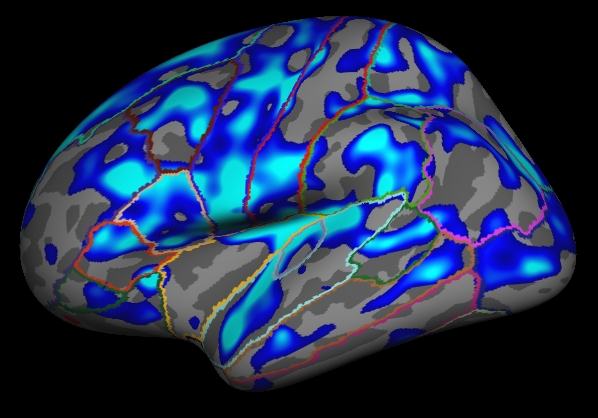
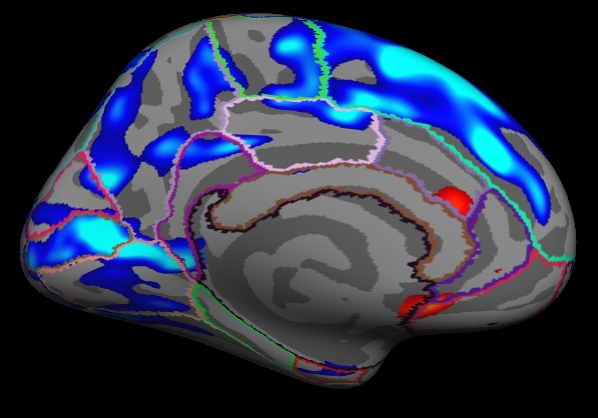
Notes:
The threshold is set to 2, meaning vertices with p<.01, uncorrected, will have color.
- Blue means a negative correlation (thickness decreases with age), red is positive correlation.
- Click on a point in the Precentral Gyrus. What is it's value? What does it mean?
Viewing the medial surface, change the overlay threshold to something very, very low (say, .01):
View->Configure->Overlay, set "Min" .01
You should see:
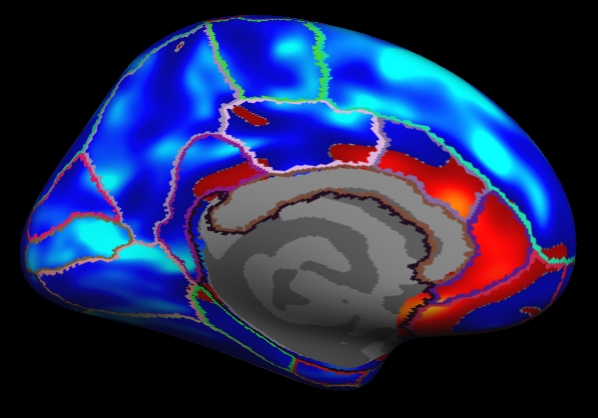
Notes:
- Almost all of cortex now has color
- The non-cortical areas are still blank (0) because they were excluded with --cortex in mri_glmfit above.
Clusterwise Correction for Multiple Comparisons
Note: The method used is based on: Smoothing and cluster thresholding for cortical surface-based group analysis of fMRI data. Hagler DJ Jr, Saygin AP, Sereno MI. NeuroImage (2006).
To perform a cluster-wise correction for multiple comparisons, we will run a simulation. The simulation is a way to get a measure of the distribution of the maximum cluster size under the null hypothesis. This is done by iterating over the following steps:
- Synthesize a z map
- Smooth z map (using residual FWHM)
- Threshold z map (level and sign)
- Find clusters in thresholded map
- Record area of maximum cluster
Repeat over desired number of iterations (usually > 5000)
In FreeSurfer, this information is stored in a simple text file called a CSD (Cluster Simulation Data).
Once we have the distribution of the maximum cluster size, we correct for multiple comparisons by:
- Going back to the original data
- Thresholding using same level and sign
- Finding clusters in thresholded map
- For each cluster, p = probability of seeing a maximum cluster that size or larger during simulation.
Run the simulation
All these steps are performed with the mri_glmfit-sim:
mri_glmfit-sim \
  --glmdir lh.gender_age.glmdir \
  --sim mc-z 5 4 mc-z.negative \
  --sim-sign neg --cwpvalthresh 0.4\
  --overwrite
Notes:
- Specify the same GLM directory (--glmdir)
- The simulation type is Z Monte Carlo (mc-z)
- Specify the sign (neg for negative, pos, or abs)
Vertex-wise threshold of 4 (p < .0001)
Only 5 iterations (usually > 5000)
- CSD files will have mc-z.negative base
"--cwpvalthresh 0.4" Keep clusters that have cluster-wise p-values < 0.4 (usually you will want something like .05). To see all clusters, set to .999
- --overwrite deletes previous CSD files
This has been run this data with 1000 iterations (CSD base of mc-z.neg). This can often take many hours.
View CSD File
The CSD files are stored in lh.gender_age.glmdir/csd. Look at one of them:
less lh.gender_age.glmdir/csd/mc-z.neg4.j001-lh-Avg-thickness-age-Cor.csd
Or click here.
To end the less command, type 'q' for quit.
Notes:
- Rows that begin with '#' are headers or comments.
- Each data row is an iteration.
- The 3rd column is the maximum cluster size for that iteration.
- The CSD file itself is not particularly important, so don't worry too much about it.
View the Corrected Results
In the contrast subdirectory, you will see several new files, all beginning with mc-z:
mc-z.neg4.sig.cluster.summary - summary of clusters (text)
mc-z.neg4.sig.cluster.mgh - cluster-wise corrected map (overlay)
mc-z.neg4.sig.ocn.annot - annotation of clusters
First, look at the cluster summary (or click here):
less lh.gender_age.glmdir/lh-Avg-thickness-age-Cor/mc-z.neg4.sig.cluster.summary
Notes:
- This is a list of all the clusters that were found (38 of them)
- The CWP column is the cluster-wise probability (the number you are interested in). It is a simple p (ie, NOT -log10(p)).
- Note that ALL clusters are found, regardless of their significance.
- Cluster number 1 has a CWP of p=.001.
- Cluster number 21 has a CWP of p=.077.
Load the cluster annotation in tksurfer
tksurfer fsaverage lh inflated \
  -annot lh.gender_age.glmdir/lh-Avg-thickness-age-Cor/mc-z.neg4.sig.ocn.annot \
  -fthresh 2 -curv -gray
You should see:
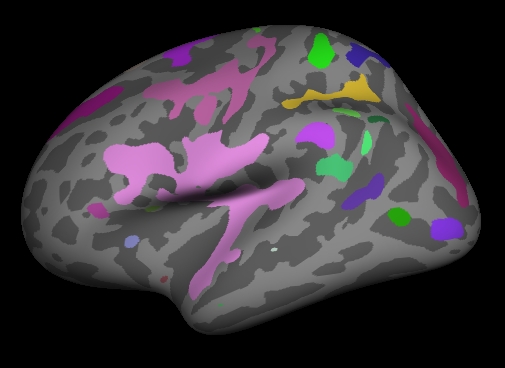
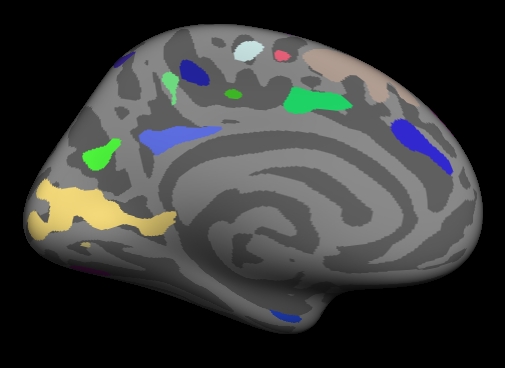
Notes:
- These are all clusters, regardless of significance.
- When you click on a cluster, the label will tell you the cluster number (eg, cluster-021).
Change the label mode to "Outline" by hitting the outline button  . Now load the cluster p-value overlay with
  File->LoadOverlay
  Click "Browse..."
  Next to where it says "Selection", paste (middle click with a 3-button mouse) the following:  lh.gender_age.glmdir/lh-Avg-thickness-age-Cor/mc-z.neg4.sig.cluster.mgh
  Hit OK
  Hit OK
You should see:

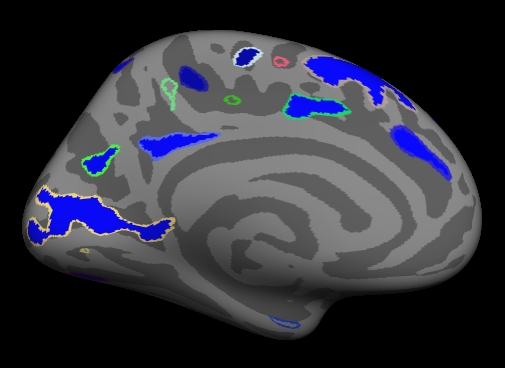
Note:
Things to do:
- Find and click on cluster 1. It is blue and has a value of -3 since this is log10(.001). The -3 is because the correlation is negative.
- Find and click on cluster 21. Its value is -1.11 because this is log10(.077). Note that it is transparent because its significance
is worse than the threshold we set (-fthresh 2, p < .01).
- All vertices within a cluster are the same value (the p-value of the cluster).
- You can changed the cluster-wise threshold by clicking on
View->Configure->Overlay, and setting the "Min" to your desired level. As you do this, some clusters will change transparency.