|
Size: 477
Comment:
|
Size: 684
Comment:
|
| Deletions are marked like this. | Additions are marked like this. |
| Line 9: | Line 9: |
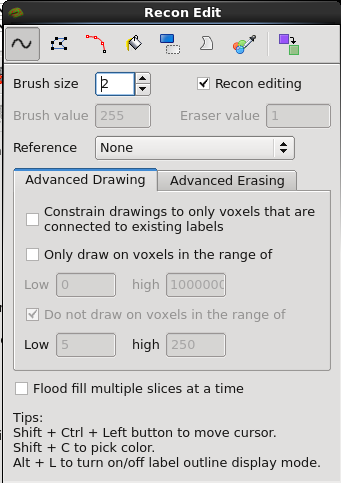
| Selecting Recon Edit mode will prompt the Recon Edit pop-up window to appear, which will include the following button bar: | Selecting Recon Edit mode will prompt the Recon Edit pop-up window to appear, which will look like the following: |
| Line 15: | Line 15: |
* [[FsTutorial/PialEditsV6.0|Edits to the pial surface]] * [[FsTutorial/WhiteMatterEditsV6.0|Edits to the white matter volume]] * [[FsTutorial/TopologicalDefect_freeview|Correcting topological defects]] * |
Recon Edit
Describe recon edit.
Voxel edit mode is located just above the layer list and underneath the menu bar, or can be found under Action -> Recon Edit in the menu bar. Alternatively, you can use the shortcut key Ctrl+E.

Selecting Recon Edit mode will prompt the Recon Edit pop-up window to appear, which will look like the following: