
|
Size: 474
Comment:
|
← Revision 6 as of 2017-10-27 16:04:59 ⇥
Size: 1503
Comment:
|
| Deletions are marked like this. | Additions are marked like this. |
| Line 1: | Line 1: |
| ||Up to FreeviewGuide ||Back to [[FreeviewGuide/FreeviewTools/VoxelEdit|VoxelEdit]] ||Continue to [[FreeviewGuide/FreeviewTools/RoiEdit|RoiEdit]] || |
|
| Line 3: | Line 5: |
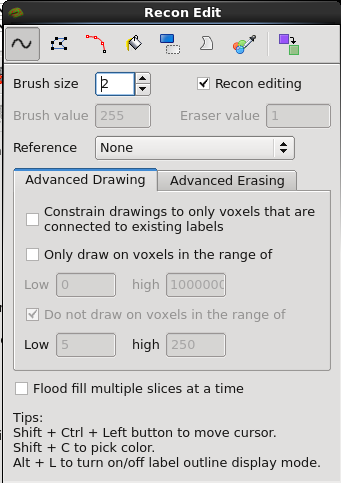
| Describe recon edit. | The Recon Edit mode in Freeview includes tools which can be used to remove, add or alter the value of voxels in volumes loaded into Freeview. Recon edit differs from Voxel edit since Recon edit presets some of the parameters of voxel editing for convenience. In Recon edit, the brush value is set to 225 and the eraser value is set to 1. In addition, it also enables a "do not draw" on voxels that range from 5 to 250. For these reasons, Recon edit should be used instead of Voxel edit when making changes to data that has already gone through the recon-all process. |
| Line 5: | Line 7: |
| Voxel edit mode is located just above the layer list and underneath the menu bar, or can be found under Action -> Recon Edit in the menu bar. Alternatively, you can use the shortcut key Ctrl+E. | Recon edit mode is located just above the layer list and underneath the menu bar, or can be found under Action -> Recon Edit in the menu bar. Alternatively, you can use the shortcut key Ctrl+E. |
| Line 7: | Line 9: |
| {{attachment:VoxToolBar.jpg}} | {{attachment:recon-edit-icon.png}} |
| Line 9: | Line 11: |
| Selecting Recon Edit mode will prompt the Recon Edit pop-up window to appear, which will include the following button bar: | Selecting Recon Edit mode will prompt the Recon Edit pop-up window to appear, which will look like the following: |
| Line 11: | Line 13: |
| {{attachment:VoxWindowBar.jpg}} | {{attachment:recon-edit.png}} |
| Line 13: | Line 15: |
| For an explanation of the different options in this menu, see the [[FreeviewGuide/FreeviewTools/VoxelEdit|VoxelEdit]] page. | |
| Line 15: | Line 18: |
* [[FsTutorial/PialEditsV6.0|Edits to the pial surface]] * [[FsTutorial/WhiteMatterEditsV6.0|Edits to the white matter volume]] * [[FsTutorial/TopologicalDefect_freeview|Correcting topological defects]] |
Up to FreeviewGuide |
Back to VoxelEdit |
Continue to RoiEdit |
Recon Edit
The Recon Edit mode in Freeview includes tools which can be used to remove, add or alter the value of voxels in volumes loaded into Freeview. Recon edit differs from Voxel edit since Recon edit presets some of the parameters of voxel editing for convenience. In Recon edit, the brush value is set to 225 and the eraser value is set to 1. In addition, it also enables a "do not draw" on voxels that range from 5 to 250. For these reasons, Recon edit should be used instead of Voxel edit when making changes to data that has already gone through the recon-all process.
Recon edit mode is located just above the layer list and underneath the menu bar, or can be found under Action -> Recon Edit in the menu bar. Alternatively, you can use the shortcut key Ctrl+E.

Selecting Recon Edit mode will prompt the Recon Edit pop-up window to appear, which will look like the following:
For an explanation of the different options in this menu, see the VoxelEdit page.